Editor: Porcia Akua Holmes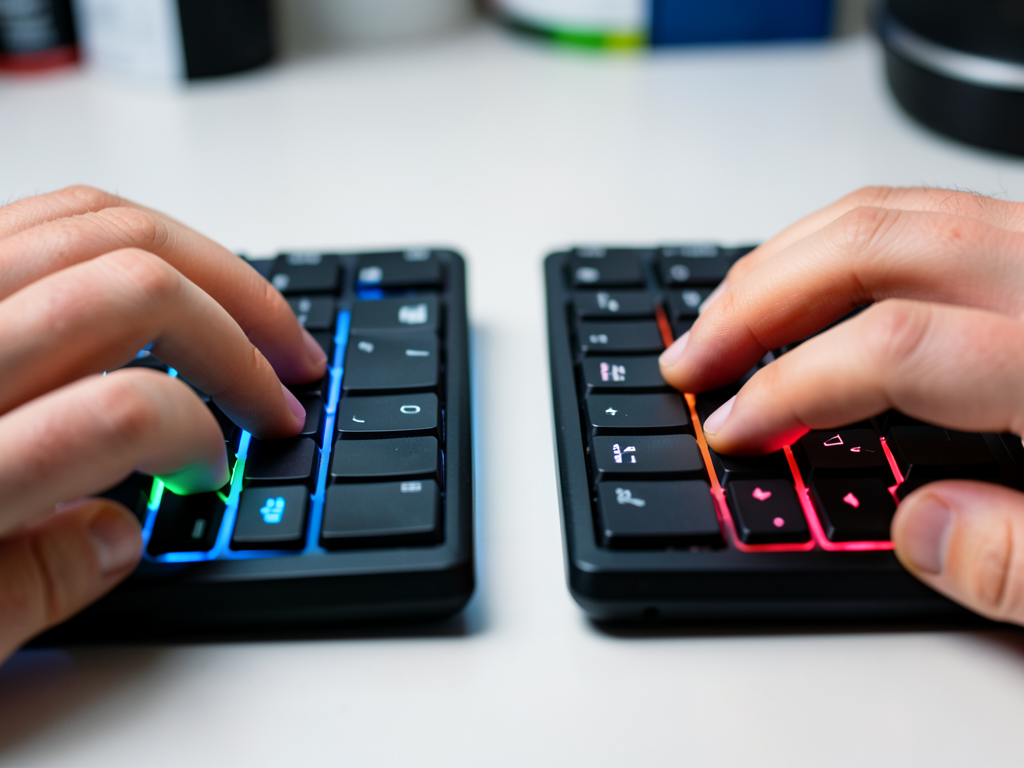
For decades, the physical and logical layout of the keyboard has been one of the most polarizing differences between Windows and Macs. It is not just about where the Alt or Command key sits. The real tension comes from how each platform expects users to think about shortcuts, modifiers and muscle memory.
The Core Difference: Modifier Keys
The most visible split between Windows and Macs is the modifier key arrangement. Windows keyboards place Ctrl, Windows and Alt in a row near the spacebar. Mac keyboards use Control, Option and Command, with Command sitting directly next to the spacebar on both sides.
This layout pushes the most-used Mac shortcut key into the thumb's natural resting zone. On Windows, the most-used modifier is Ctrl, which sits one key away from the spacebar. That distance, tiny as it seems, changes how quickly a user can execute shortcuts and how comfortable they feel during long typing sessions.
Many shortcuts are conceptually similar across platforms, but the physical key differs. Copy and paste, for example, use Ctrl on Windows and Command on Macs. Undo, save and select-all follow the same pattern. The mental translation is simple, but the physical execution is not.
Muscle Memory and Daily Friction
Anyone who alternates between Windows and Macs knows the specific frustration of pressing the wrong key. The brain learns keyboard layouts as spatial patterns, not as abstract labels. When the same finger motion produces a different result on each platform, the resulting errors feel almost automatic.
Common pain points for switchers include:
These small differences add up. For developers, writers and support staff who move between machines, the cost is measured in lost time and heightened frustration. Over a full workday, even a few seconds lost to wrong shortcuts can compound into a meaningful productivity hit.
External Keyboards and Remapping
External keyboards introduce another layer of complexity. Many users plug a Windows keyboard into a Mac or a Mac keyboard into a Windows PC, only to find that the modifier keys do not behave as expected. Windows keyboards work with Macs, but the Windows key acts as Command, and the Alt key acts as Option. The opposite setup, using a Mac keyboard on Windows, requires manual remapping for the Command key to behave like the Windows key.
Both major platforms offer built-in remapping tools, and third-party utilities like PowerToys for Windows and Karabiner-Elements for Macs provide deeper customization. These tools can swap modifier keys, remap individual keys and even create platform-specific profiles. For people who genuinely need to switch regularly, investing a few minutes in setup can remove most of the daily friction.
Why This Matters
The keyboard gap between Windows and Macs is not going away. Both companies have strong reasons to keep their existing layouts: changing them would break decades of muscle memory for billions of users. But the rise of hybrid work, cross-platform development and cloud-based workflows means more people than ever are forced to live in both worlds.
The real impact is on productivity and cognitive load. Every wrong shortcut is a small interruption, and those interruptions accumulate. For individual users, the solution is usually remapping or a consistent external keyboard. For teams and organizations, the lesson is simpler: provide clear onboarding guidance for platform switchers and accept that keyboard differences are a permanent part of the cross-platform experience.
What You Can Do Next
If you regularly switch between Windows and Macs, start by mapping the shortcuts you use most often. Identify the top five commands in your daily workflow and learn their equivalents on the other platform. Consider remapping the modifier keys on your secondary machine to match your primary one, or use a keyboard that clearly labels both legends.
Keyboard differences between Windows and Macs are a classic example of how small design decisions create long-term behavioral patterns. They are also a reminder that even in an age of touchscreens and voice input, the physical keyboard remains the primary interface for getting work done.