Senior Editor: Alan Agbele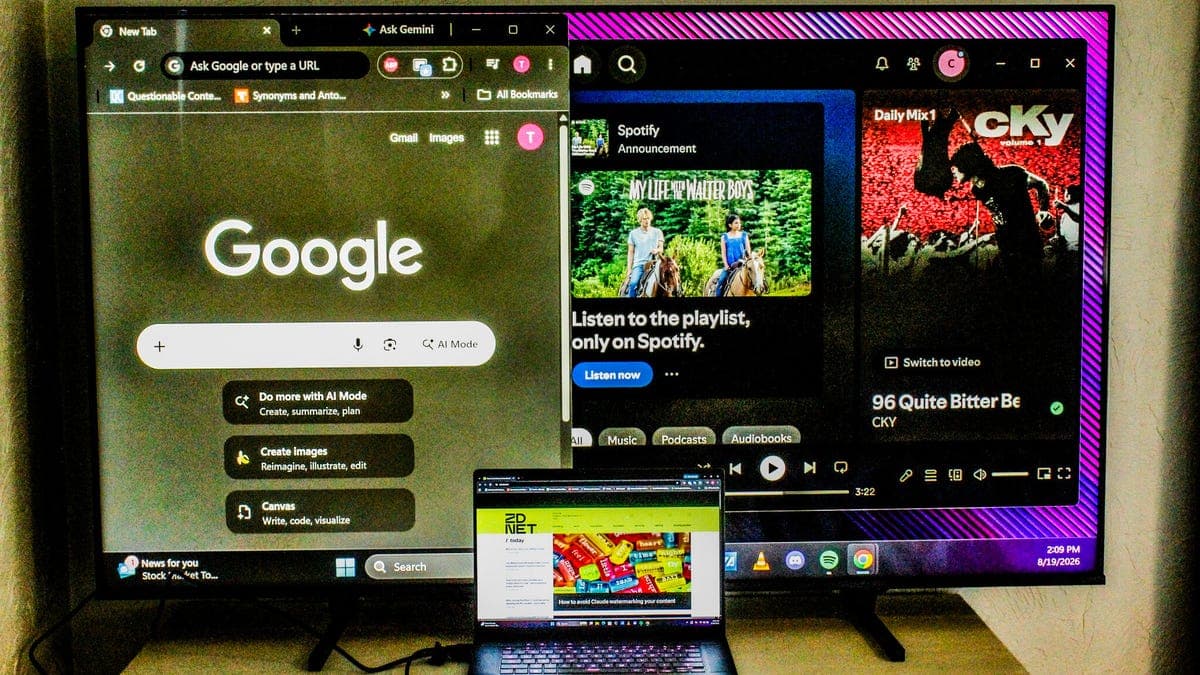
An aging television no longer has to gather dust in a spare room. With a single cable and a few settings adjustments, that old LCD screen can serve as a functional computer monitor for laptops or desktops. The practice is gaining traction as remote workers and budget-conscious users look for affordable display options without buying new hardware.
The Rise of TV-as-Monitor
Repurposing old electronics is not a new concept, but the shift to remote and hybrid work has accelerated interest in using televisions as computer displays. Many households already own a flat-screen TV that sits unused after an upgrade. Connecting that screen to a laptop or desktop provides an instant second monitor for multitasking, media consumption or gaming. The growing availability of wireless display protocols such as Miracast and Apple AirPlay also makes cable-free connections possible on newer TVs, further lowering the barrier to entry.
Technical Requirements and Limitations
To use a TV as a monitor, check the available video ports. Most TVs accept HDMI, which carries both video and audio. Computers without HDMI can use DisplayPort or USB-C with an adapter. The following list outlines the common connection types and their considerations:
Beyond the cable, the computer's display settings must be adjusted. On Windows, open Display Settings to detect the TV and choose an extended or duplicate mode. On macOS, go to System Settings > Displays to arrange screens. Linux users can configure multi-monitor setups through the desktop environment's settings. The TV should be set to its native resolution, typically 1920x1080 or 3840x2160, for the clearest image. Turn off any motion smoothing or game mode settings that could introduce input lag.
Why This Matters
The ability to transform an old TV into a computer monitor has real-world consequences for both consumers and the environment. For individuals, it eliminates the need to spend $100 or more on a dedicated monitor, making remote work or home schooling more accessible. For the electronics industry, extending the life of a display reduces e-waste and delays the purchase of a new device, which cuts down on resource extraction and manufacturing emissions. The approach, however, comes with caveats. Text small on a 40-inch screen can cause eye strain, and the lower pixel density compared to a monitor makes detailed work like photo editing impractical. These limitations mean the setup is best suited for secondary tasks such as watching videos, reading articles or managing spreadsheets, rather than as a primary workstation for professional graphic design or high-intensity gaming.