Editor: Porcia Akua Holmes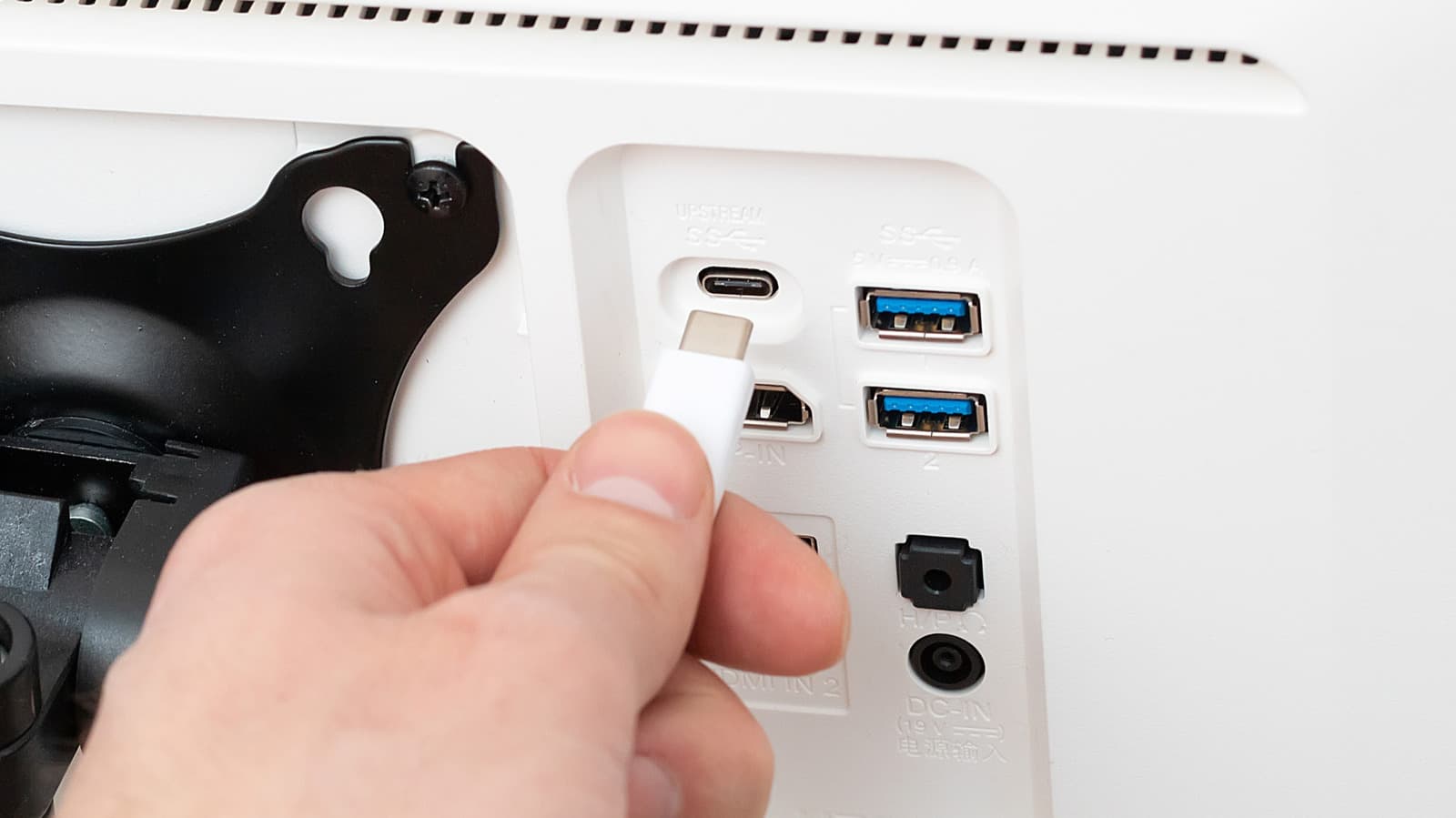
Many users overlook the small icons printed next to USB ports on laptops, monitors and docking stations. One of the more cryptic symbols is a stylized letter D. That mark signals that the port supports video output through DisplayPort Alt Mode, a feature that lets a single USB-C cable carry both data and high-resolution video signals.
Decoding the D Symbol
The D symbol is part of the official USB-IF icon set for USB Type-C ports. It indicates that the port supports the DisplayPort Alt Mode standard. When connected to a compatible monitor or adapter, the port can output video at resolutions up to 8K depending on the host device and cable quality. Many laptops, tablets and smartphones include this feature, though it is often unmarked on lower-cost devices. The symbol itself resembles a capital D with a horizontal line through its vertical stem, representing the DisplayPort logo simplified.
Practical Benefits and Limitations
Users gain convenience from having fewer cables and adapters. A single USB-C cable can connect a laptop to a monitor while simultaneously charging the device and transferring data. Devices that lack a dedicated HDMI or DisplayPort output especially benefit from this feature. However, not all USB-C ports include the D symbol. Some ports are limited to data transfer or charging only.
Why This Matters
As USB-C becomes the universal connectivity standard, understanding port symbols directly affects purchasing decisions. Consumers who buy a monitor expecting to connect via a single USB-C cable may discover their laptop's port lacks the D symbol and cannot output video. This mismatch forces additional expense on adapters or cable swaps. For professionals who rely on docking stations and multi-monitor workflows, verifying that every USB-C port carries the D symbol can prevent costly compatibility issues. Manufacturers, meanwhile, are gradually adopting clearer labeling, but many devices still omit these icons, leaving buyers to dig through spec sheets.
How to Identify D Symbol Ports
Check the physical port on your device. Look for a small stamped or printed D icon near the USB-C opening. If no symbol appears, consult the device's technical specifications under video output or USB-C features. Some manufacturers list "DisplayPort Alt Mode" or "DP Alt Mode" in the specs. Third-party USB-C hubs and monitors often include the D symbol on their ports as a guarantee of video support. When in doubt, a simple test with a known working monitor and cable can confirm the capability.